 Caretide
Help
Questions, bugs, ideas? Write to hello@caretide.de. I answer personally.
My roster isn’t recognised correctly
Under More, enter your name exactly as it appears on the printout. Photograph the roster straight on, in good light, with the whole table in view.
Uncertain cells are marked in red. Tap one and pick the right shift. Caretide remembers it for next month.
Try it
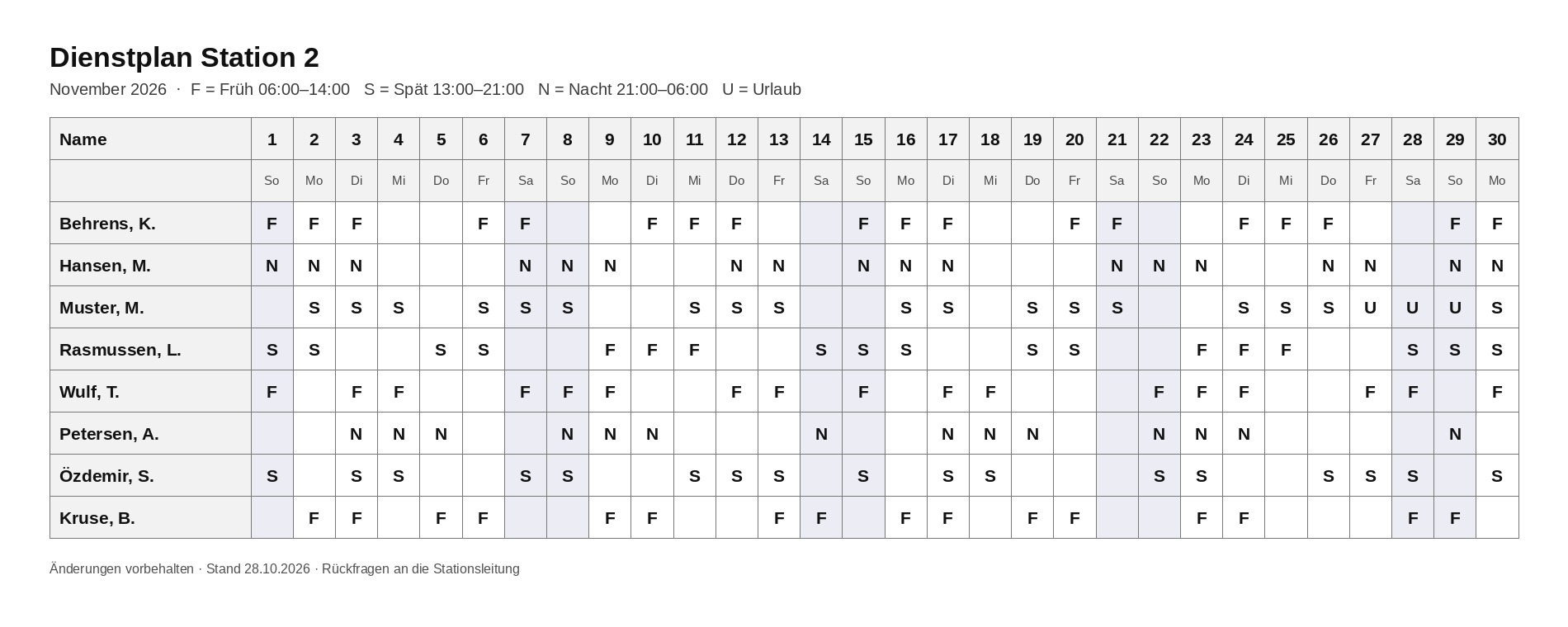
Here is a made-up sample roster. Enter “Muster, M.” as your name and scan it from your screen or save it to Photos.
Shifts missing on another device
Caretide syncs through your private iCloud. Both devices need the same Apple Account, with iCloud turned on in Settings.
Share with partner or family
Tap Share in Caretide and turn on “Roster in Calendar”. Then in the Calendar app tap “Calendars”, tap ⓘ next to “Caretide” and choose “Add Person”.
Bought Pro, but it isn’t unlocked
Under More, Caretide Pro, tap “Restore Purchases”. With Family Sharing, Pro works for your family too.
Add widgets
Touch and hold the Home Screen, tap Edit, Add Widget, Caretide. For the Lock Screen: touch and hold the Lock Screen, Customize.
Apple Watch
The watch app installs together with Caretide on iPhone. Open Caretide on your iPhone once and your roster appears on your watch.
Export my data
Under More, “Export Data” creates a spreadsheet (CSV) with all your shifts.